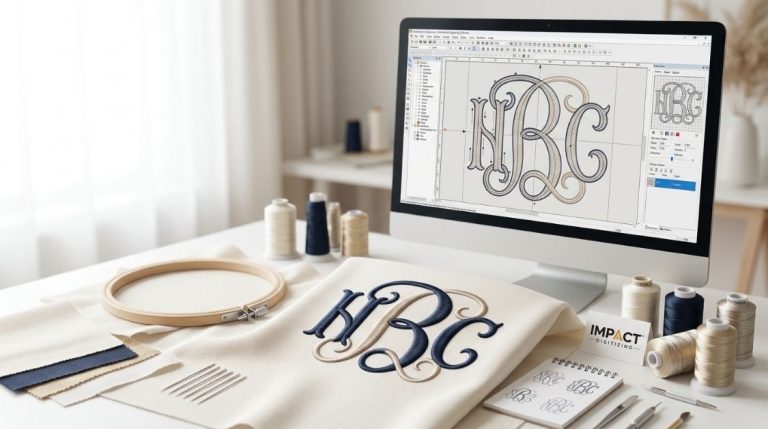

Vector files are essential for embroidery designs, printing, and branding. This is mainly because, unlike raster files, vector files are not blurry, no matter how large or small they are scaled. This is the reason why modern laborers discover a need to convert pdf to vector formats to ensure proper, clear, and comprehensible results are displayed. We are going to take you through the steps of how to convert the pdf file into vector art, the tools to employ, the blunders to make, and when to seek professional help while moving from pdf to vector formats.
What Is a Vector Image and Why Does It Matter?
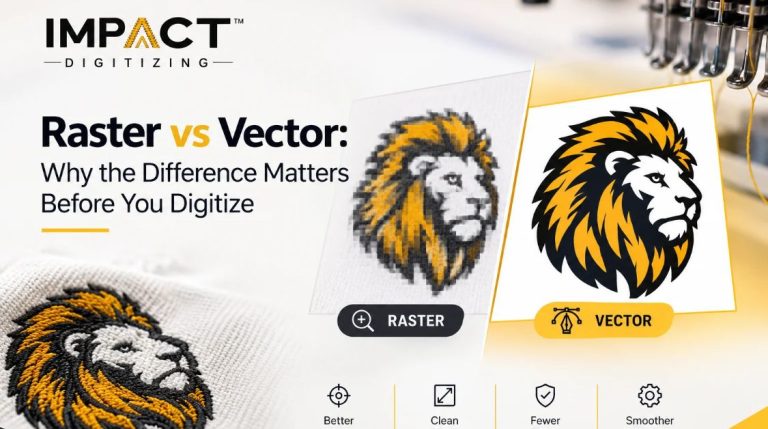
A vector image is made using mathematically defined shapes, unlike dots. Formats like AI, SVG, EPS, and PDF are essential for creating vector files correctly, important for embroidery, shirt designs, laser cutting, logos, and other uses requiring PDF to vector accuracy.
For a deeper understanding of professional vector artwork, explore this guide onsteps for creating vector art, which covers path creation and refinement techniques for clean, scalable results. When going from PDF to vector, images defined as pixel data have to be dealt with specially, especially during converting pdf to vector file processes.
Step-by-Step: How to Convert PDF to Vector
However, turning a PDF into a vector for a nice design isn’t that hard if done correctly, particularly when following best practices for how to create vector file outputs.
Step 1: Check Whether the PDF Is Already Vector-Based
Not all PDFs are created equal, however. You can have PDFs where you can see lines and shapes that can change size, while others are just regular images made up of small dots. If you can really zoom in on a PDF and the edges are still clear, it’s likely a vector PDF, which simplifies converting pdf to vector file tasks.
Step 2: Choose the Right Software
The following are some software for converting PDFs to vectors and convert pdf to vector art accurately:
- Adobe Illustrator (industry standard).
- CorelDRAW.
- Inkscape (free, open-source).
- Online converters (best for simple artwork only).
For work, desktop software is usually more dependable than online tools when moving from pdf to vector workflows.
Step 3: Open or Import the PDF
Open the PDF in the program you want to utilize. Choose the page or picture you want to change. Most programs let you manage colors, layers, and text when you import files, which supports learning how to create vector file structures properly.
Step 4: Convert and Refine the Artwork
Once imported:
- Use “Image Trace” or equivalent tools if the PDF is raster-based to convert pdf to vector art.
- Adjust paths, curves, and anchor points.
- Clean unnecessary nodes for smoother results.
This step is very important when changing a PDF into vector art for sewing or printing and is central to converting pdf to vector file accuracy.
Step 5: Save as a Vector Format
Export your final file in the required format after you convert pdf to vector art successfully:
- SVG for web and design compatibility.
- AI or EPS for professional printing.
- DXF for CNC or laser cutting.
This finishes the steps referred to in making a vector file utilizing a PDF file and finalizing how to create vector file outputs.
Common Mistakes to Avoid
Numerous competitors do not do this step, but it’s very vital during pdf to vector conversion:
- Relying fully on auto-trace without manual cleanup.
- Ignoring color limitations for embroidery or print.
- Using low-resolution PDFs that reduce vector accuracy.
- Assuming all PDFs convert cleanly (they don’t).
When to Use Professional Vector Art Services
DIY tools work for simple graphics, but complex logos, embroidery designs, and artistic images need experts, like Raster to Vector Conversion Experts, for accurate raster-to-vector conversion.
Professional Vector Art Services ensure:
- Clean, optimized paths handled by Raster to Vector Conversion Experts.
- Industry-standard file formats.
- Accurate color separation.
- Compatibility with embroidery machines and printers.
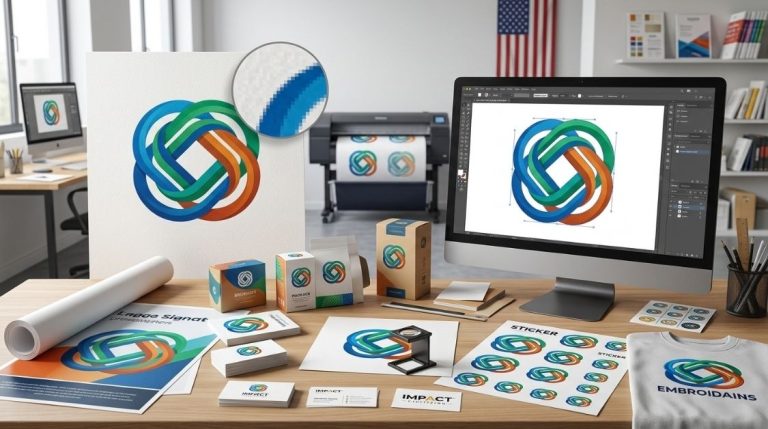
View real-world examples of professional vector artwork in the Impact Digitizing portfolio for embroidery, printing, branding, and commercial use. At Impact Digitizing, we focus on accurate vector conversions made for actual use, not just how they look, delivering results aligned with professional Vector Art Services standards and handled by experienced Raster to Vector Conversion Experts.
Conclusion
Knowing how to convert PDFs into vector files and how to create vector file outputs is certainly useful. Getting a pro to assist can also save time, money, and headaches. It is perfect to create great results for embroidery, printing, or brand creation with well-conversed PDFs particularly if it comes from trusted Vector Art Services. If quality matters, rely on experts skilled in both design and production techniques.
Impact Digitizing transforms your blurry PDFs into crisp, scalable vectors for any application.
FAQs
How to convert a PDF to a vector image?
Utilize Illustrator or Inkscape to draw or change vector lines and save them as SVG, AI, or EPS files.
How to make a PDF from images step by step?
Load pictures into design software, organize them, and then save or export as a PDF.
How to convert a PDF to an image?
Use tools like Adobe Acrobat, Photoshop, or reliable online converters to change PDFs into images.
Is a PDF image a vector image?
It only works if it has vector paths; scanned PDFs are made of images.
What are the best PDF to image converters?
Adobe Acrobat, Photoshop, Zamzar, and VeryPDF are good tools for converting files well.