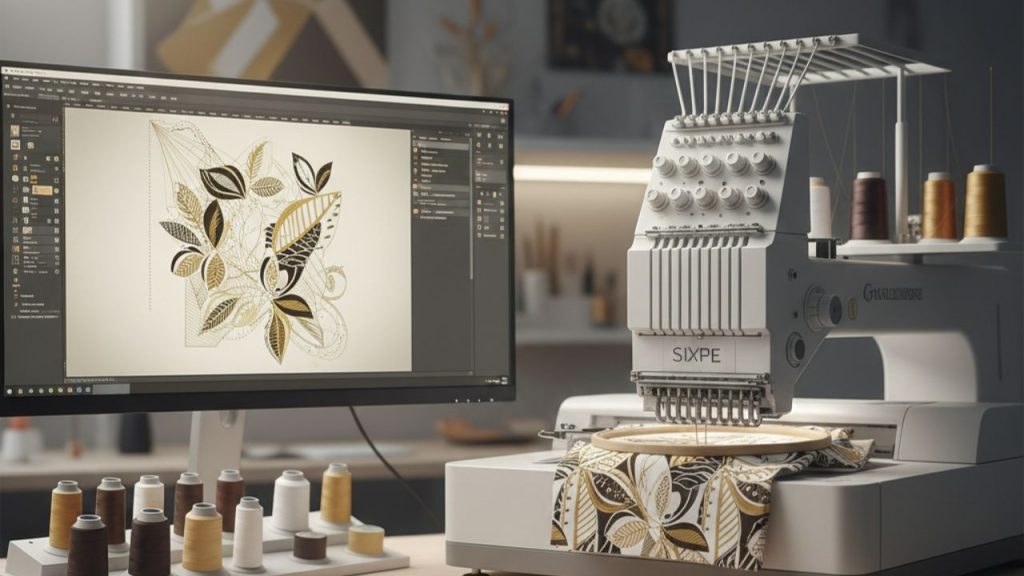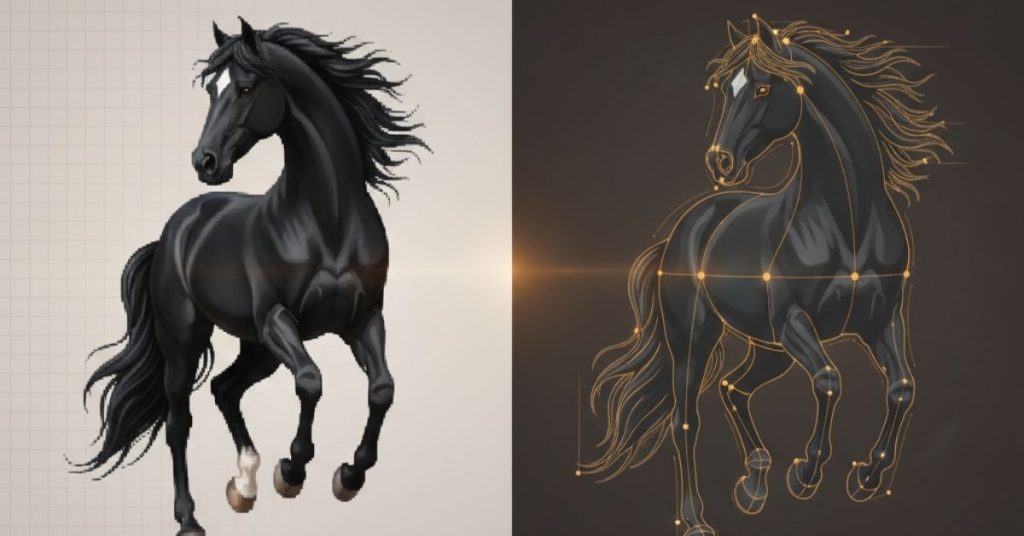
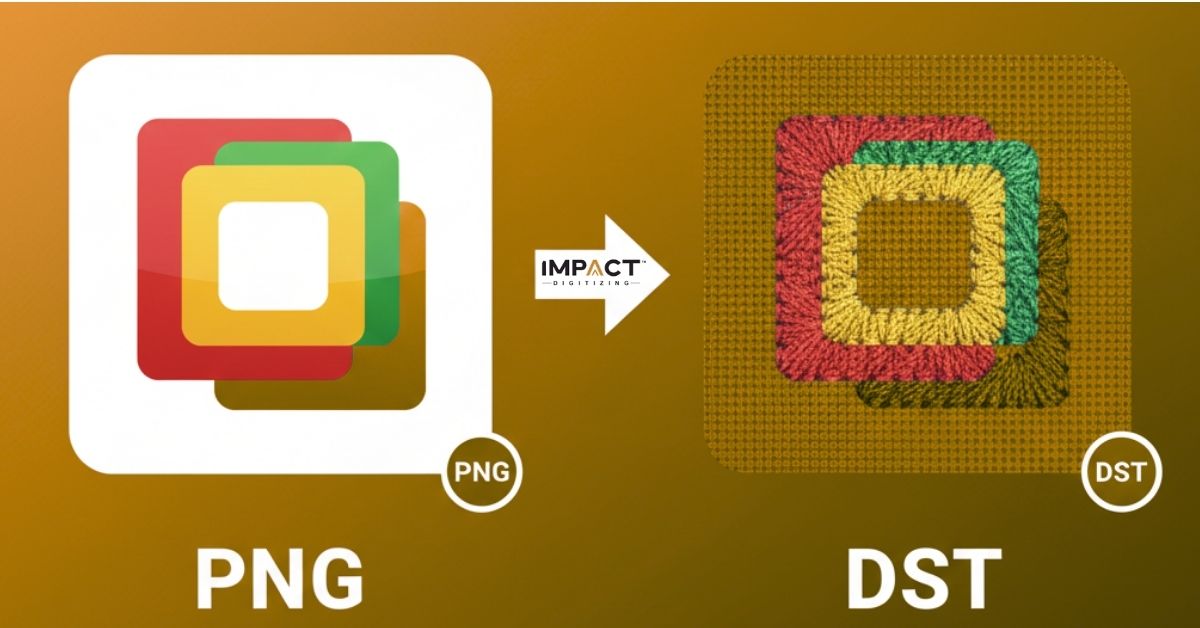
The embroidery machine often requires you to convert patterns into stitch-ready files. You might need to convert a common image to a file format that your computer can understand into a particular stitch-ready file format. Many beginners want to change a PNG image into a file that can be used in embroidery programs. With professionally digitized designs from Impact Digitizing, this process becomes smoother and more accurate.
This guide explains things clearly and simply, so you can easily create neat and easy-to-read designs without any worry, using a PNG to DST.
What Is a DST File?
A DST file is used by embroidery machines to understand stitching instructions. It doesn’t keep colors or layers as a normal picture does. Instead, it has tiny movement instructions that help show where each needle should go. These commands help the machine make stitches, cut threads, and move around.
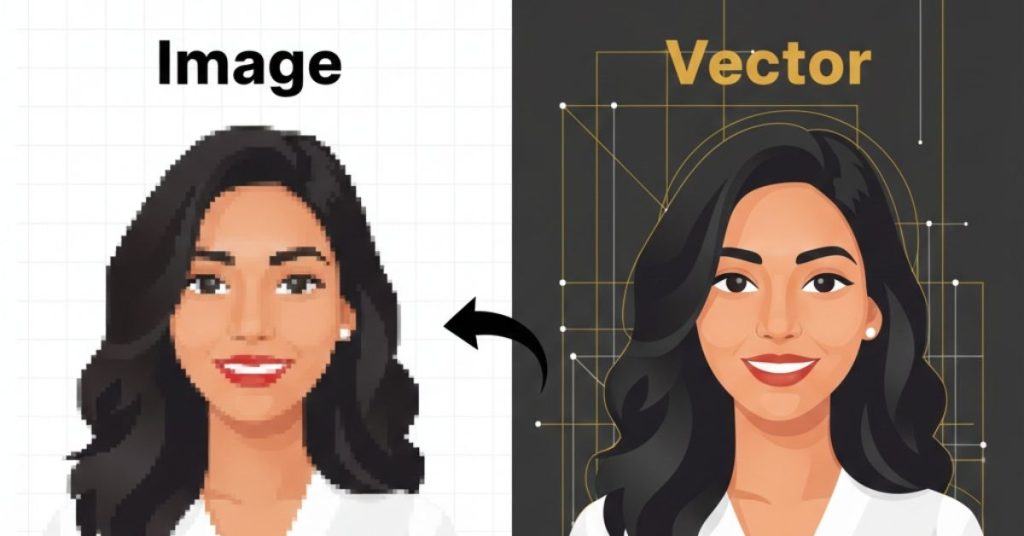
Most PNG images contain information about colors and shapes. Since they use pixels, they need to be converted into digital form before they can be sewn together. Digitizing creates the sewing pattern needed for the final DST file. Using a PNG to DST file converter ensures this step is done accurately.
Why You Can’t Directly Save a PNG as DST
A PNG is just a picture. A DST file is a guide for how to sew designs. They operate in various ways. You can’t keep one the same as the other unless you use embroidery software. We need to digitize because the software must understand shapes, trace the design, and decide how the needle should move on the fabric. This is why PNG to DST converter tools are essential for beginners.
Tools You Need Before Starting
You will need software to convert designs for embroidery. Many choices have easy-to-use tools for beginners as well as more advanced tools for experienced users. Professional digitising software like Wilcom is commonly used to convert PNG designs into stitch-ready DST files.
Check for options like editing stitches, controlling how tight the stitches are, and changing colors. Check that the software can save files in DST format.
Some software can convert PNG to DST; however, you have to keep in mind that automatic outputs are seldom perfect. That means for an ideal result, using an automatic converter with some manual editing is highly recommended. Using a PNG to DST converter helps simplify this process.
How to Convert PNG to DST Step-By-Step
Learn how to turn your PNG image into a DST file for embroidery machines. Follow these simple steps to prepare, digitize, and export your design accurately.
Step 1: Import Your PNG Image
Start your embroidery program and add your design. Look at the image quality. Sharp edges make it easier to digitize things. If the picture has small details, make the design simpler so the stitches look nice. Use a reliable PNG to DST converter at this stage if needed.
Step 2: Clean and Prep the Artwork
Get rid of extra colors or distractions. Make the lines even where it’s necessary. This step helps the software understand the shape better when you start digitizing.
Step 3: Set Your Hoop and Stitch Preferences
Pick the size of the hoop that your embroidery machine needs. Next, choose the kind of stitch paths you want. Satin, fill, and running stitches are good for different parts of a project. Good planning helps to lower thread breaks and makes the results more even. Make sure your settings are ready before you convert PNG to DST.
Step 4: Digitise the Design
Start drawing the shapes, giving every section a stitch type. Also, to obtain a good, smooth finish, the stitch angles should be changed. Always keep the thickness of the cloth uniform so that no creases occur in the process. This takes longer because every design needs careful planning. This step is essential to ensure a smooth process when you convert PNG to DST.
Step 5: Review and Edit the Stitch Path
Look closely and see the order. Check for any extra pieces or sections that should be taken off. Change any spots where stitches cross each other or seem too tight. Good digitizing helps the DST file work well.
Step 6: Save and Export as DST
When the stitching looks right, save the file. One-click conversion of PNG files into DST files is an option in your software. Choose the right settings, and then save them to a folder on your computer. A PNG to DST file converter can help finalize this step efficiently.
Conclusion
Once you know how to perform the basic steps, changing your artwork from a PNG file to a format ready for stitching isn’t that hard. With a good tool and a simple process, and a little practice, you’ll be able to create some nice embroidery either for yourself or for your customers. For better control over details, take a look at a PNG to DST converter or a PNG to DST file converter that allows editing by hand. This helps you in making your final result clear and correct.
For smoother stitching and cleaner designs, let Impact Digitizing handle your file prep with expert precision.
FAQs
1. How do I convert a PNG to a DST file?
Place your PNG file into the embroidery software and create your design. Save the stitch pattern onto a DST file for your machine.
2. How do I make my own DST file?
Make or bring in designs using digital software and choose the types of stitches. Save the finished stitch design as a DST file.
3. What is the DST file format?
DST is a type of file used for embroidery that keeps track of stitch instructions and needle movements. It doesn’t store picture or color information like a PNG file does.
4. What are common problems with DST files?
Common problems are missing stitches, uneven patterns, or broken threads. Problems often happen because the digital copies are low quality or have small details.
5. How to open and edit DST files?
Open the DST file in the embroidery software to see and change the stitch pattern. After you finish editing, save the new file for stitching.